Audio Deck app icon
Windows 10 · 11

Your audio setup,
one click away.

Audio Deck saves named profiles that each pin a default output and input device, then switches Windows to a profile in one click, one command, or one Stream Deck button. Profiles live in a local JSON file. No account, no cloud, no background service.
Download AudioDeckSetup.exe GitHub
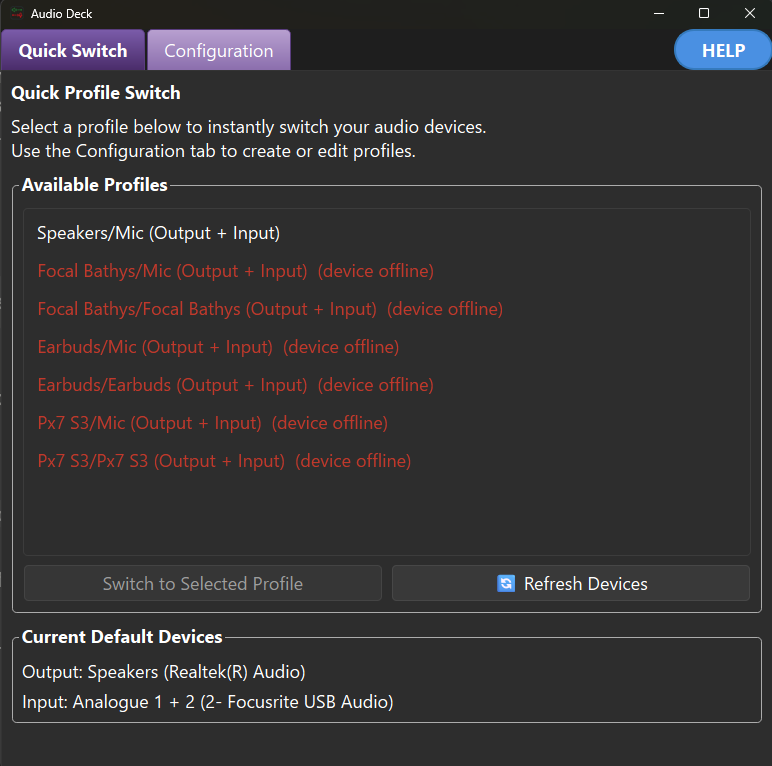
Audio Deck Quick Switch tab: a list of saved profiles with offline devices marked, and the current default output and input devices shown below.

Quick Switch — pick a profile and switch. Offline devices are marked and applied automatically when they reconnect.
1 click
To switch
GUI + CLI
Two interfaces
Stream Deck
One button per setup
0
Accounts or cloud
LGPL-3.0
Open source
Features

Built for people who
keep changing their setup.

Speakers for music, a headset for calls, an interface for recording. Save each as a profile and move between them without touching Windows sound settings.

Named profiles

Each profile pins one default output device and one default input device. Switch to a profile and Windows changes both at once.

One-click switching

The Quick Switch tab lists every profile. Click Switch to Selected Profile, or just double-click a profile to apply it.

Command line

--list and --profile NAME run headless with a process exit code, so any script or launcher can drive it.

Stream Deck ready

Map a profile to a physical key with BarRaider's Advanced Launcher plugin, or a one-line batch file. One press, one setup.

Offline devices

Pin a device that is currently off, like a Bluetooth headset. The moment it reconnects, the pending switch is applied automatically.

Partial switching

If one device in a profile is missing, the rest are still applied and the missing one is reported, so a switch never silently half-fails.

Live device rescan

The device list refreshes on Windows device changes and periodically. Refresh Devices forces an immediate rescan on demand.

Local-first

Profiles are stored as JSON under %LOCALAPPDATA%. Runs per user, no admin rights, nothing leaves your machine.

Update check

Check for a newer release straight from the Help menu, so you always know when an update is available.

Two tabs, that's
the whole app.

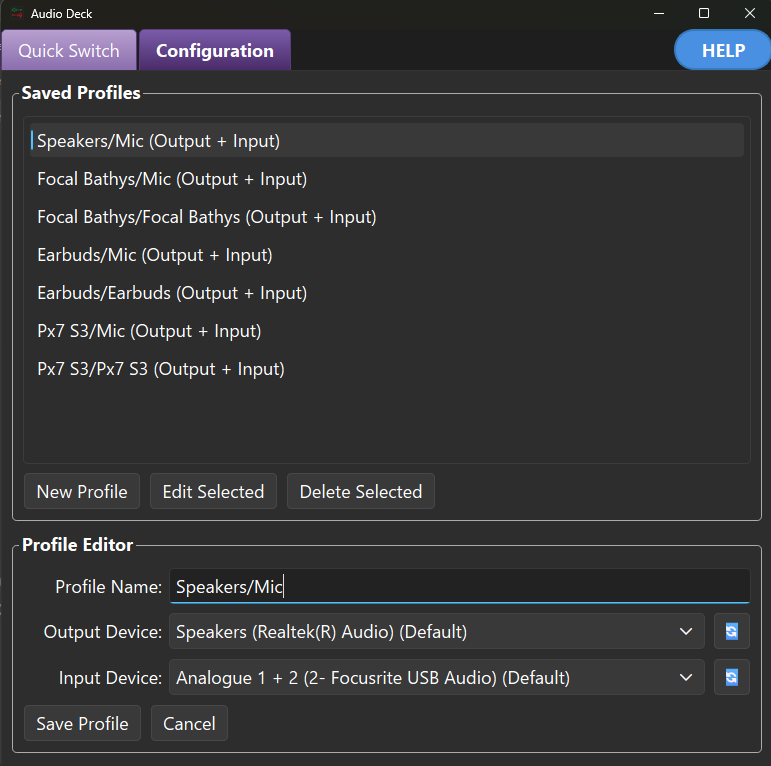
Create and edit profiles on the Configuration tab. Name the profile, pick an output device and an input device from the live dropdowns, and save.

  • New, edit and delete from the saved-profiles list.
  • Output and input chosen independently per profile.
  • Deletions are confirmed before anything is removed.
  • Switch over to Quick Switch and you are one click from any setup.
Audio Deck Configuration tab: the saved-profiles list with New, Edit and Delete buttons above a profile editor showing profile name, output device and input device dropdowns.

Configuration — the profile editor with live output and input device dropdowns.

Automation

Drive it from a key,
a script, or the shell.

With no arguments Audio Deck opens the GUI. With --list or --profile it runs headless and returns an exit code, which is exactly what a Stream Deck button or a batch file needs.

Command line
# List all profiles
AudioDeck.exe --list

# Switch to a profile by name
AudioDeck.exe --profile "Gaming Setup"

# Version, help, or launch the GUI
AudioDeck.exe --version
AudioDeck.exe --help
AudioDeck.exe           # no args = GUI
Stream Deck button (Advanced Launcher)
# Application
AudioDeck.exe

# Arguments
--profile "Gaming Setup"

# One key per setup. Press it,
# the default output and input
# devices switch instantly.
Architecture

Clean by construction

Audio Deck follows a four-layer clean architecture: UI and CLI are clients of the application layer, which orchestrates a pure domain, while infrastructure implements the domain's interfaces against Windows Core Audio and the filesystem. Dependencies point inward and are wired in one explicit composition root.

UI · CLI PySide6 + argv Application use cases Domain pure, no I/O Infrastructure pycaw / comtypes (Core Audio) · JSON store implements dependencies point inward → a pure Domain

Install Audio Deck

A per-user installer from the Releases page, no Python needed. Or run from source in a few commands.

Download the latest AudioDeckSetup.exe from GitHub Releases and run it. The themed installer is per user and needs no admin rights: it installs Audio Deck, registers it in Windows Settings > Apps and creates Start Menu and desktop shortcuts. Your profiles live in %LOCALAPPDATA%\AudioDeck\profiles.json.

Latest release

Windows 10 / 11. Licensed LGPL-3.0. Built with Python, PySide6, pycaw and comtypes over the Windows Core Audio API.

Run from source
# Clone and set up
git clone https://github.com/oernster/AudioDeck
cd AudioDeck
python -m venv venv
venv\Scripts\activate

# Install and run the GUI
pip install -r requirements.txt
python src\main.py

# Build the app, then the installer
python buildexe.py         # dist\AudioDeck.exe
python buildinstaller.py  # AudioDeckSetup.exe